
Wellsite Geological Supervision
Professional geological coverage, sample evaluation, formation picking, striplogs and complete end-of-well reporting.
Plan wellsite coverage →Hover or tap for a three-month chart · Click the preview link to explore in Infinity
Loading the latest published oil and gas prices…
Published benchmarks · Quote dates and units shown individually · Not a real-time trading feed
Baker Hughes · dated observations · weekly North America / monthly international
Click or tap a feature icon to see what’s inside.
Explore public-area well evidence and geological maps, and work with your own logs in a separate prospect workspace.
Existing active Infinity account required. Member projects, uploads and private research remain separate.
Chaser Geological provides wellsite geological supervision and remote geosteering, supported by GeoNavigate Infinity for connected geological operations.
Professional geological coverage, sample evaluation, formation picking, striplogs and complete end-of-well reporting.
Plan wellsite coverage →Continuous wellbore placement support using survey, gamma, gas, drilling and geological data in one interpretation workflow.
See the platform →Offsite coordination, quality control and operator-ready updates that connect the rig, geological team and office.
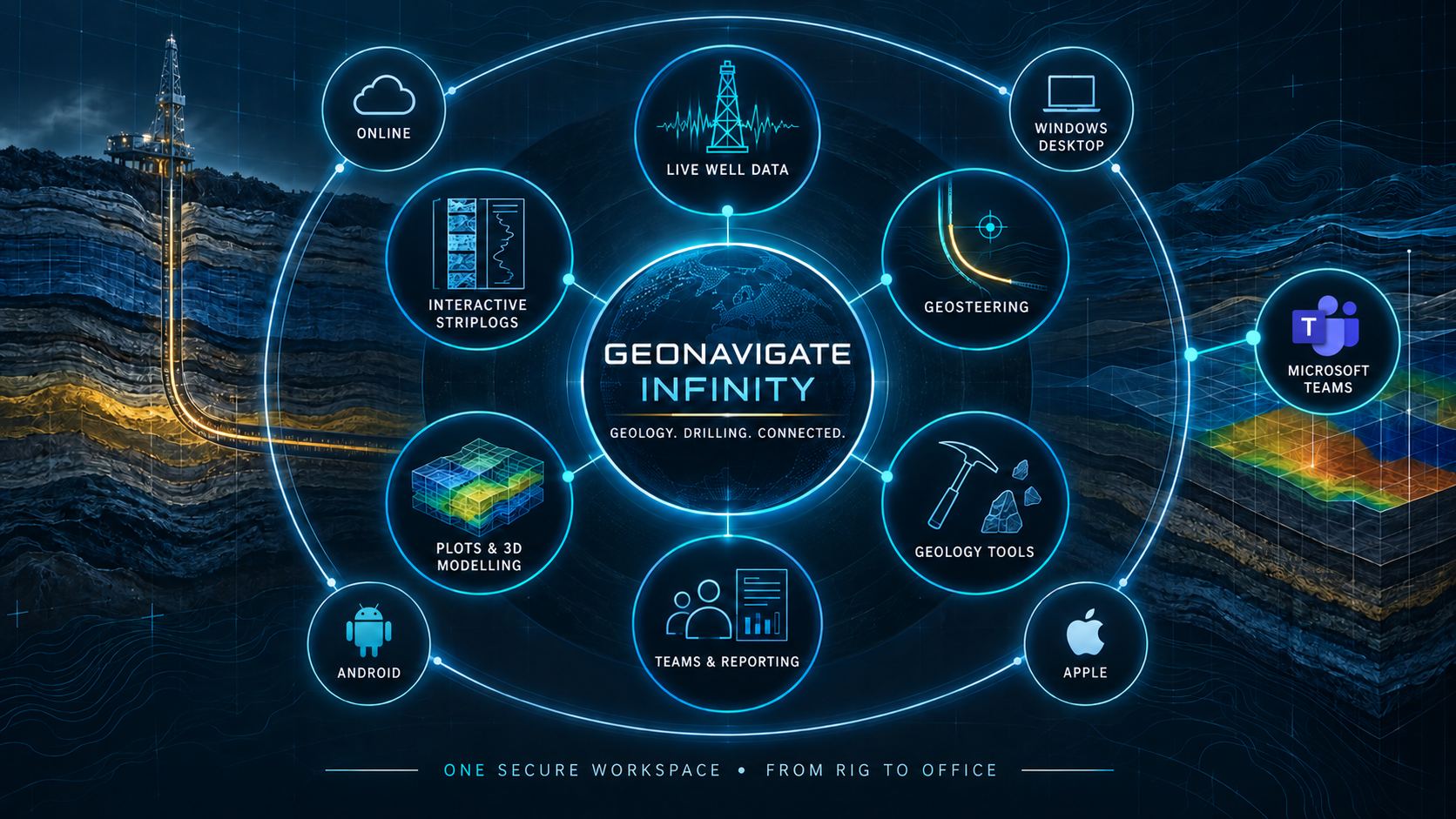
Build your program →A connected geological operations platform for the browser, Windows desktop, Android and Apple devices—linking the rig, wellsite geologist, geosteering team and office in one live workspace.
Desktop, mobile and Microsoft Teams app access is provided inside the secure Infinity workspace after sign-in.
Sign in for app access ↗
stratA/iQ is Infinity’s AI steering option for automatic gamma-ray correlation. It compares the lateral GR curve with your linked type log or offset log, searches for a better formation-dip match within your chosen range, and updates the selected interval when the recorded data supports an adjustment.
Open Infinity for stratA/iQIn Infinity, open Geosteering and the Type log GR correlation panel in the mRTVD workflow. The control is currently labelled “AI Steering · automatic GR fit”. Editing access to the well is required.
Load the survey, a lateral GR curve and a type-log or offset GR curve. Confirm the reference TVD, curve units and a reviewed depth tie, then set up the dip-adjusted mRTVD comparison.
Select a formation interval, set the dip-search range and reference-depth tolerance, then select Start AI Steering. The interval needs at least 12 numeric GR readings within survey coverage.
While active, stratA/iQ checks for changed curve evidence every eight seconds. A sufficiently supported, improved GR match adjusts the selected interval’s dip and updates the formation plots and mRTVD comparison together.
Inspect the correlation, matched readings and fit error. Stop at any time, use Undo, or restore the starting dip when there are no later conflicting edits.
Compare lateral GR along mMD with reference GR on TVD, aligned on mRTVD using the survey, formation dip and your reviewed tie.
Weak, flat or ambiguous matches leave the dip unchanged. Missing reference readings count against the fit; stratA/iQ does not invent values to fill the gaps.
You select the reference, interval and search limits. The option starts only when enabled and switches off when the panel closes.
What it changes: the selected formation interval’s dip. The surveyed well path, faults, formation thickness and original GR readings stay intact. This version uses numerical curve matching to support geological interpretation; it does not send commands to the RSS or rig.
Move along the wellbore, look around the structure and bring the rock record into view. Explore your saved well on screen or step into the same 3D scene with VR goggles.
Use your Infinity account and a well with an imported survey. Your existing well access applies.
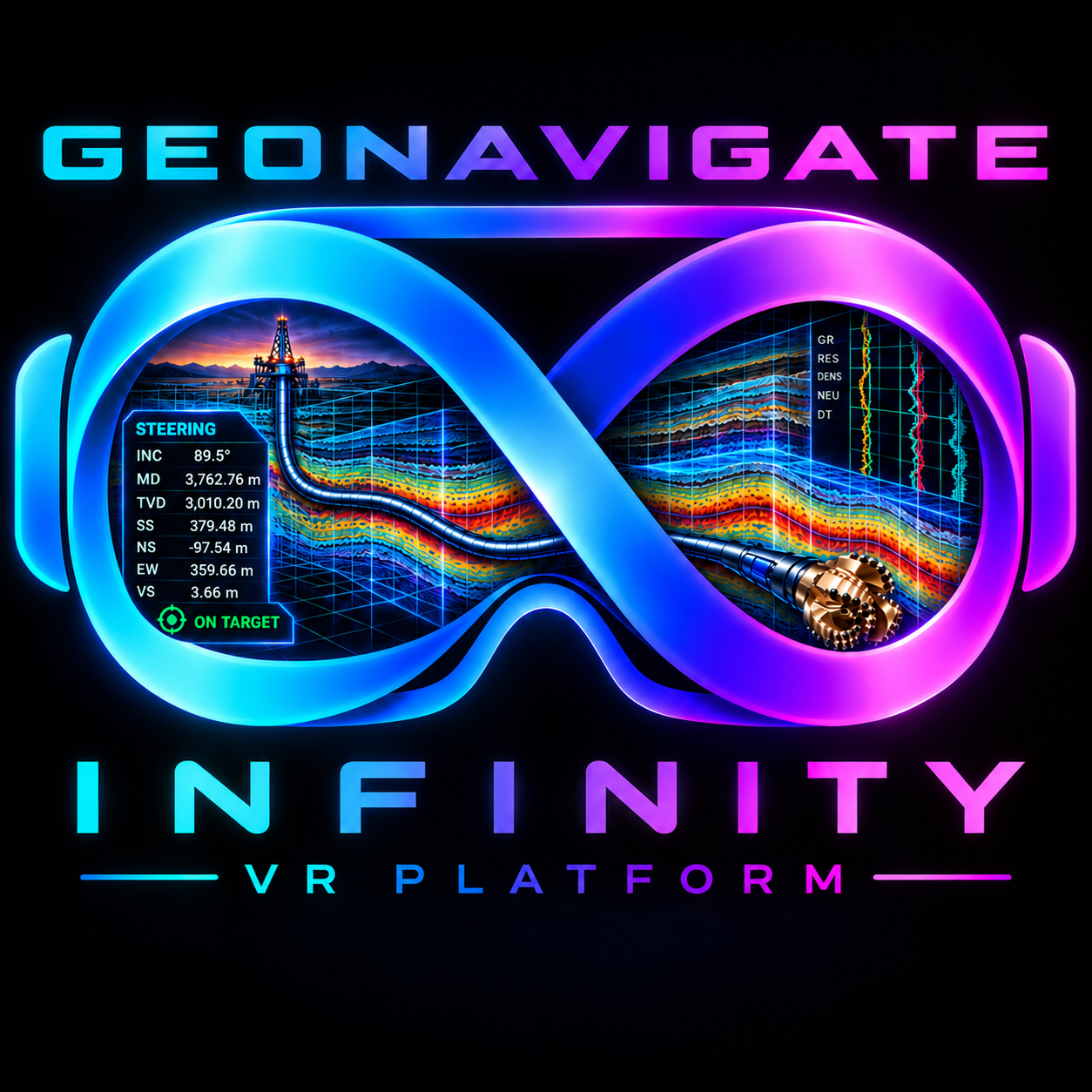
Choose the well curves you want to explore. View them beside the well at true mTVD or mSS, with a saved datum, and along its plan path on a lower ribbon at your chosen display depth.
Switch reviewed 3D structure, formation models and recorded lithology on or off. Rotate the scene or visit individual survey stations to inspect their relationship to the well.
Bring saved sample observations and depth-linked photographs into view as you move through the wellbore. Keep the source evidence close to the interval you are reviewing.
Requires a headset browser with immersive WebXR support.
Visit infinity.geonavigate.ca in the headset’s browser and sign in with your usual Infinity account.
Open Directional → VR Well Viewer, choose a saved well and select the curves, structure, lithology, samples and photographs you want to see.
Select Enter VR and accept the browser’s headset prompt. The button becomes available when a well is open and the browser supports immersive VR.
No goggles? Use the same viewer with mouse or touch: orbit, pan, zoom and expand to full screen. If Enter VR is unavailable, continue on screen or open Infinity in a compatible headset browser.
The viewer inspects loaded well records without changing them. Curve positions use exact survey-depth matches; missing measurements remain missing.
From pre-spud setup to the final geological report, Infinity keeps the data, interpretation and people together—current and accessible wherever the operation needs them.
Bring drilling, survey, gamma, gas and operational data into the geological workflow as the well progresses.
Create, update and review horizontal and vertical striplogs without passing disconnected files between users.
Correlate offset logs, manage formation geometry and review section and plan views. Use stratA/iQ for automatic GR matching and interval-dip fitting.
Explore stratA/iQPan, zoom and inspect synchronized curves, geological surfaces and well trajectories. Explore your well on screen or in the VR Well Viewer with compatible goggles.
Use the complete geology toolkit inside Infinity and the desktop app without leaving the operational workflow.
Open Geology Tools →Carry the reviewed geological record directly into operator-ready updates, plots, handovers and end-of-well reporting.
Bring Infinity into the workspace your team already uses. Infinity Live Well is available as a Teams sidebar app or a channel tab for the well you are following.
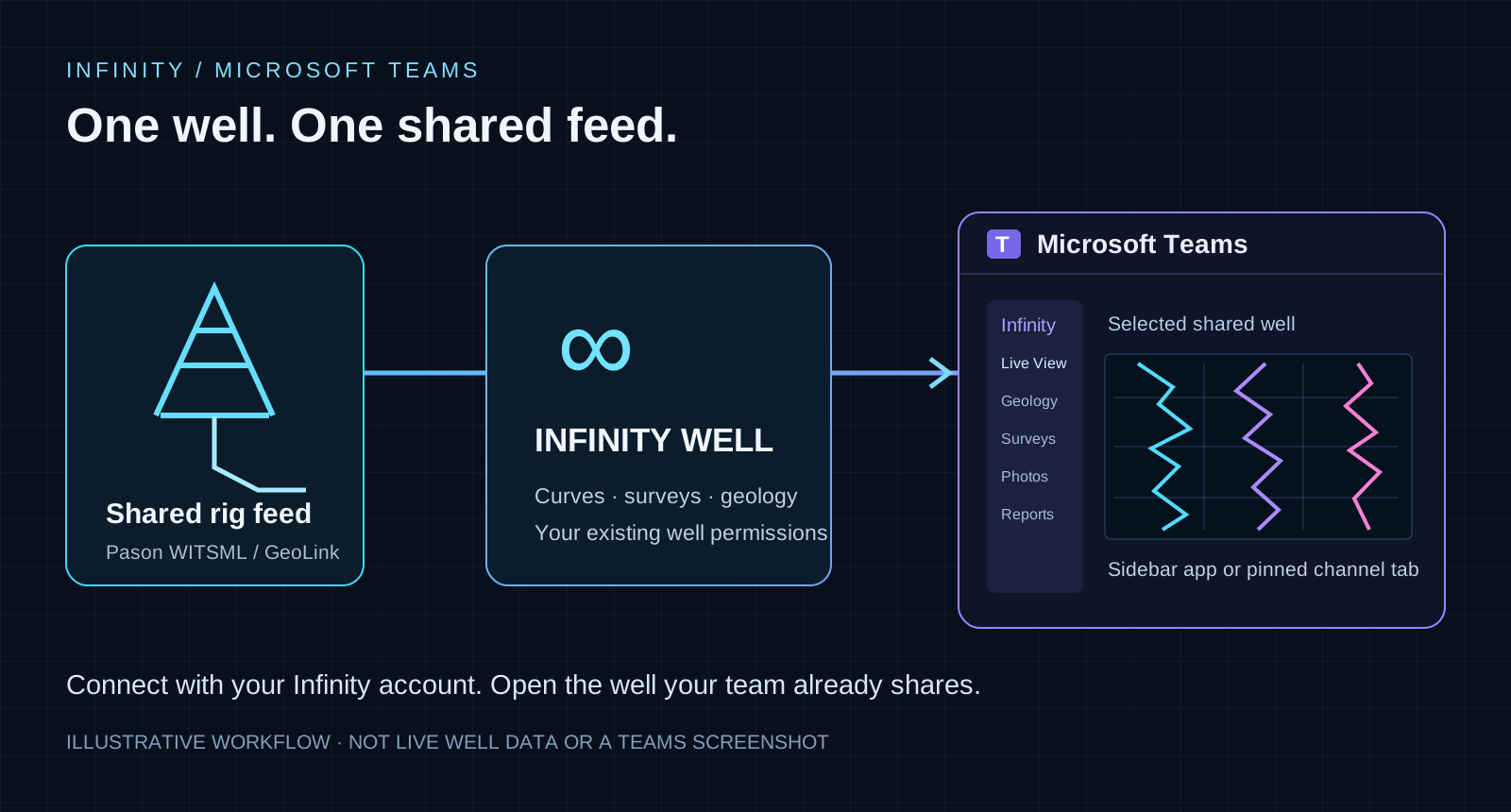
Follow shared live drilling plots from your connected Pason / GeoLink feed while working in Teams.
View saved geosteering section, measured-depth, plan and 3D views so the office and geological team can review the current interpretation together.
Add Infinity to a Teams channel and pin the well for convenient access. Sign in with your Infinity account; your existing workspace permissions apply.
The Microsoft Teams app is available from Apps & Downloads inside Infinity after sign-in, alongside the other Infinity apps.
Bring an approved WITS drilling-data feed from the Pason / EDR station into Infinity on your work computer.
Choose the download for your computer. The dedicated GeoLink page has separate packages for the geologist’s work computer and the rig station, with setup instructions for each.
GeoLink downloads & setup →GEONAVIGATE is extending the same operational standard into physical sample handling. The next system is designed to automate collection, preparation, sensing and evaluation at the rig.
Receive representative cutting samples at the end of the shaker in a controlled, repeatable workflow.
Standardize washing and screening so sample quality is more consistent between rigs, crews and intervals.
Use digital microscopy to create a continuous visual record of the rock interval for review and comparison.
Bring prepared samples, imagery and gas readings into one consistent geological evaluation workflow.
The geological record stays connected throughout the well, reducing duplication and preserving the reasoning behind every interpretation.
Load the well plan, type logs, formation framework and geological objectives.
Bring together drilling, survey, gamma, gas and sample observations in real time.
Update formation geometry, evaluate reservoir quality and communicate placement.
Produce consistent striplogs, plan views, handovers and final geological reports.
Connect field observations, geological interpretation and published research with tools from Chaser Geological.
Live WITS and WITSML well data, surveys, vertical and horizontal striplogs, offset correlation, plan and section views, sample records, team collaboration and reporting.
Open InfinityOpen a shared .gnav report and explore its plots, curves and geological intervals. Files are read locally in your browser, with no Infinity account required.
Open Infinity ViewerUse stratA/iQ for reviewed gamma-ray correlation and dip fitting. Explore geological structure, well trajectories, curves and samples in 3D and compatible VR headsets.
Explore stratA/iQ · Explore VRSearch Western Canadian geological research by basin, formation, province and publication date. Ask geobrAIn about the catalogue or articles saved to your Infinity workspace.
Open Geological Library · Meet geobrAInWork with LAS logs, striplogs, log digitizing, surveys, sample descriptions and drilling QC. GeoLink connects rig data and geology computers through virtual communication ports.
Open Geology Tools · Explore GeoLinkExplore Canadian oil and gas prices, sourced commodity history and currency conversions. Read dated energy, geothermal, drilling technology and geoscience stories.
Explore commodity charts · Read Industry ChatterShare live well and saved geosteering views through the Infinity Microsoft Teams app. Explore drilling challenges, reservoirs and oilfield development in the Drill Deep game.
Infinity for Teams · Play Drill Deep