The existing feed
The well’s configured Pason WITSML or GeoLink connection supplies the shared live data. Viewers do not create a separate rig connection.
Keep live drilling traces, geological plots and rock evidence beside your team’s conversations. Open Infinity as a sidebar app or pin a specific well in a channel.
Use your existing Infinity account and the well already shared with you.
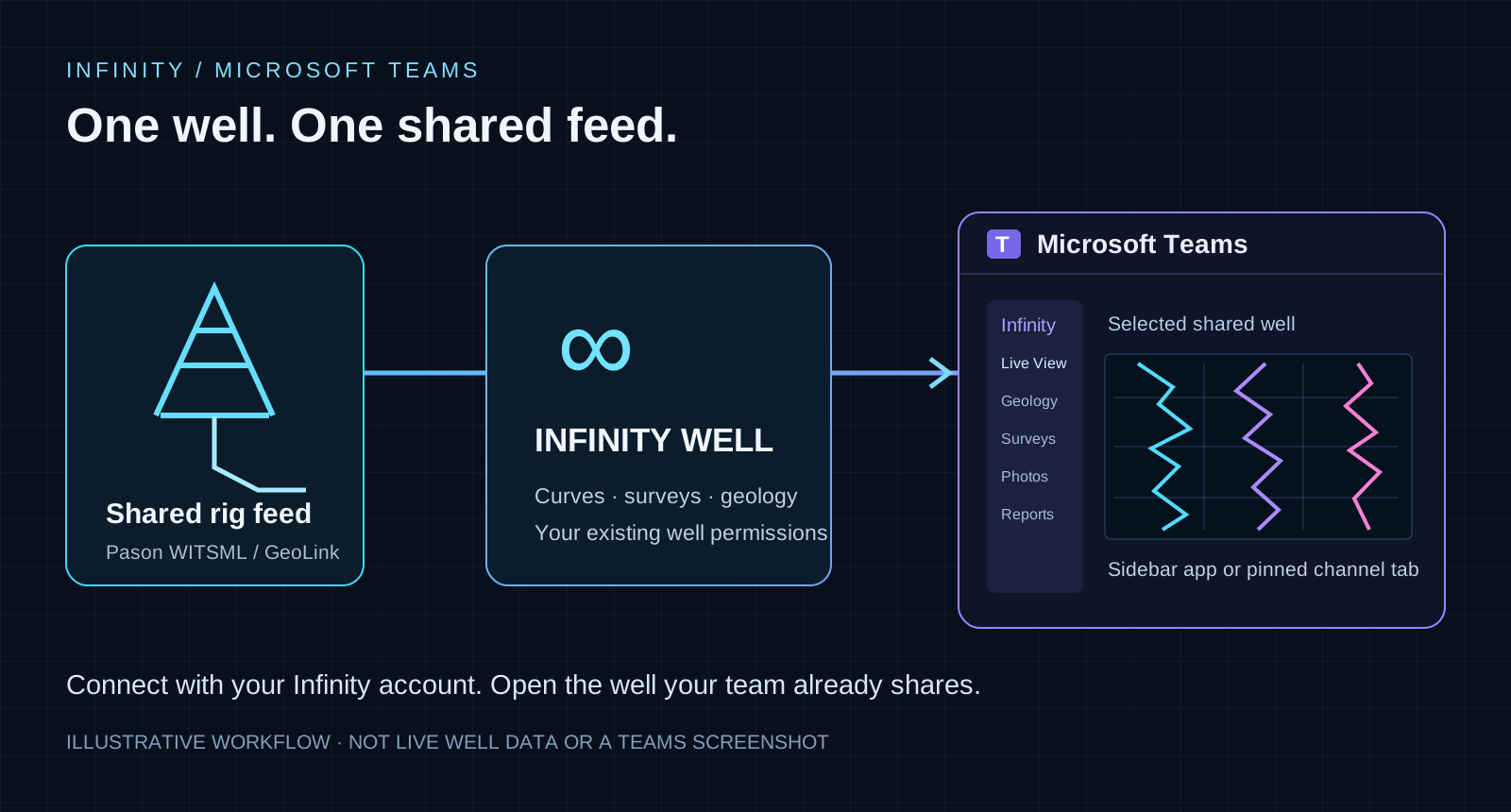
The well’s configured Pason WITSML or GeoLink connection supplies the shared live data. Viewers do not create a separate rig connection.
Available curves, shared trace layouts and saved geological interpretation stay linked to the selected well. Original values, units and depth references remain with the data.
Open the sidebar to choose an accessible shared well, or open a channel tab pinned to that well. Each person connects with their own Infinity account.
Switch between these available well views without leaving the Teams app. Live data requires a working shared feed; geological pages show the selected well’s available saved records.
Live View includes shared trace layouts, curve colours, scales, data boxes, depth/time windows, zoom and full screen. Saved photographs support zoom and pan. Save geological changes in the full Infinity app, then use Refresh in Teams to load the latest saved interpretation.
Install on Teams desktop or web. The exact package and current installation instructions are available through Infinity’s installation page.
Open Install Infinity for Teams, or find it under Apps & Downloads in Infinity. Download the ZIP and leave it zipped.
In Teams, choose Apps → Manage your apps → Upload an app → Upload a custom app, then select the ZIP. If uploads are unavailable, your Microsoft 365 administrator can install the package for your organisation.
Open Infinity Live Well → Live View → Connect to Infinity. Sign in with your existing Infinity account and open an accessible shared well.
In a channel, choose + → Infinity Live Well. Connect, select the shared well and opening view, give the tab a name and select Save.
Existing access applies. Teams membership does not grant Infinity well access. The well owner manages access in Infinity; the Teams workspace is for viewing. If the viewing session ends, choose Connect to Infinity again. Microsoft account single sign-on is not part of this release.